Formatting a memory card erases every photo and video on it and rebuilds its file system so the camera that will use it can write cleanly. Knowing how to format a memory card correctly takes about two minutes: copy your files off the card, run the format from the camera or a computer, let it finish without touching the card, then take a test shot before you rely on it.
Most card errors are not really card errors. They are leftover folder structures from another device, a half-finished write, or a card that was pulled out while the camera was still writing to it. A format clears that out. The part people get wrong is the order: they format first and back up later, and the second step never happens.
Here is what you need, the steps for each device, and the mistakes that cost people their shoots.
Table of Contents
- What You Need
- Step-by-Step
- How to Format a Memory Card Correctly in a Camera
- How to Format a Memory Card Correctly on a Computer
- How to Know the Format Worked
- Common Mistakes
- Frequently Asked Questions
- Does formatting a memory card delete my photos?
- Can I format an SD card on a computer instead of in the camera?
- Should I format an SD card as exFAT or FAT32?
- Does formatting fix a corrupted memory card?
- Does the same formatting method work for cameras, phones and action cams?
- Conclusion
What You Need
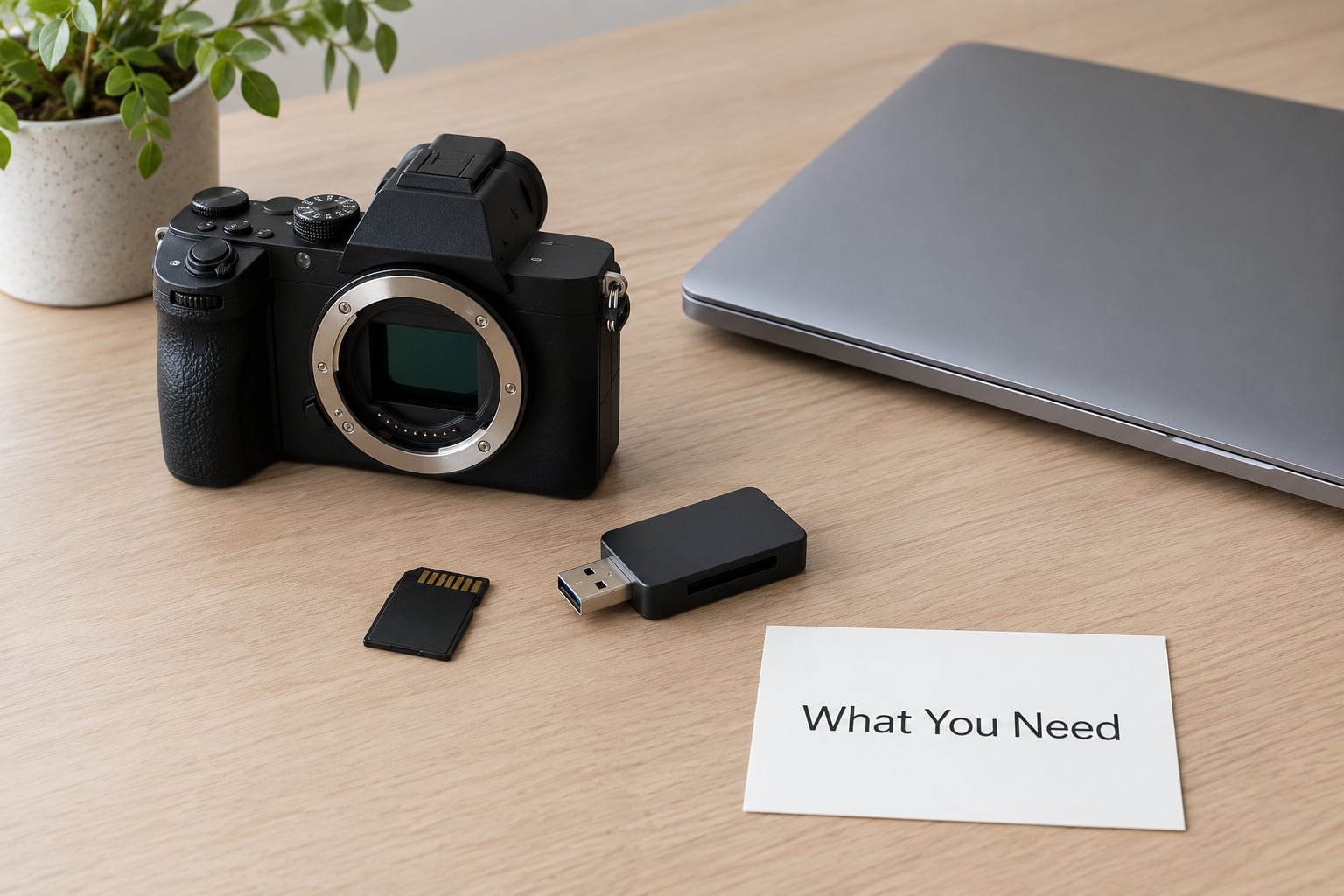
The camera or computer you will actually use with the card. This matters more than it sounds, because formatting is device-dependent: the tool you pick decides the file system, and the file system decides whether the card works next time.
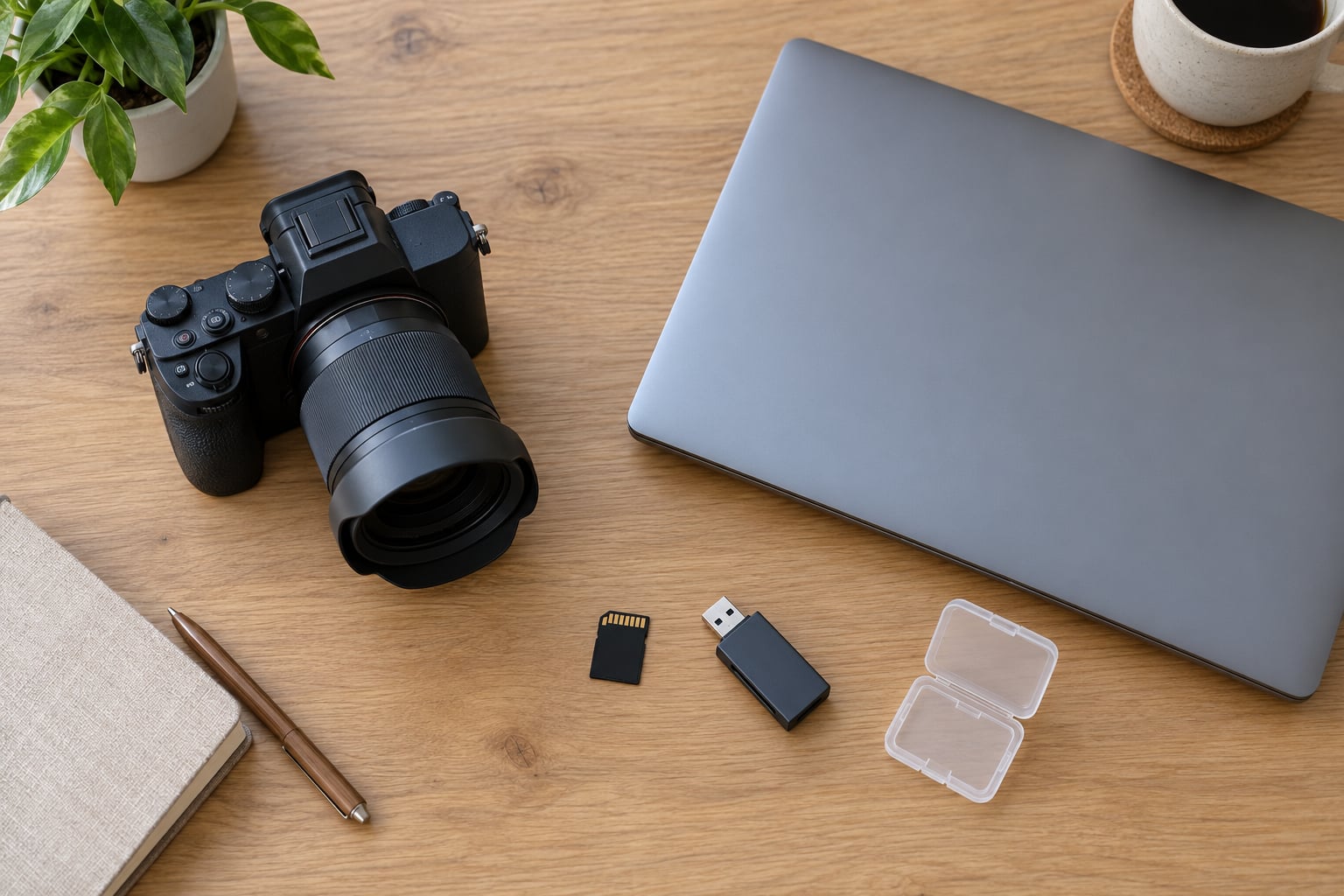
The card itself, and a note of what it is. SDHC cards hold up to 32GB and use FAT32 by convention. SDXC cards hold 64GB and up and usually use exFAT. Writing down the capacity and the speed class before you start saves you from picking a format your camera rejects.
A card reader, if a computer is involved. A cheap USB reader that plugs straight into the laptop beats fumbling with a multi-slot dock, and it is the single thing most likely to be the reason a card refuses to format.
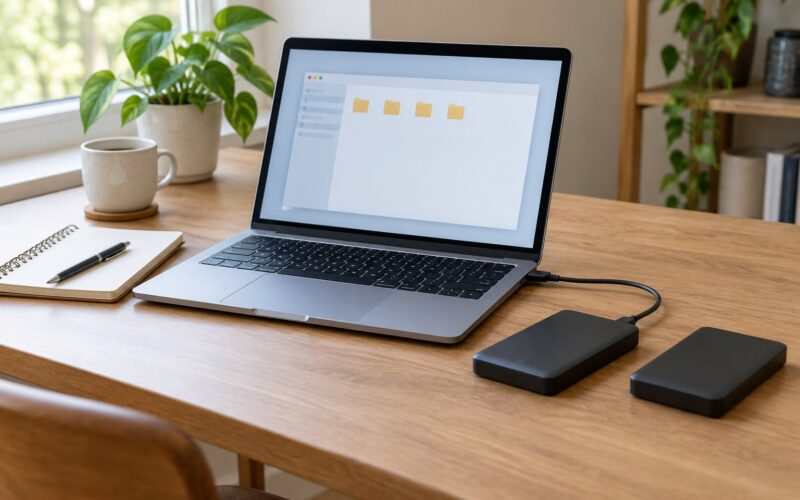
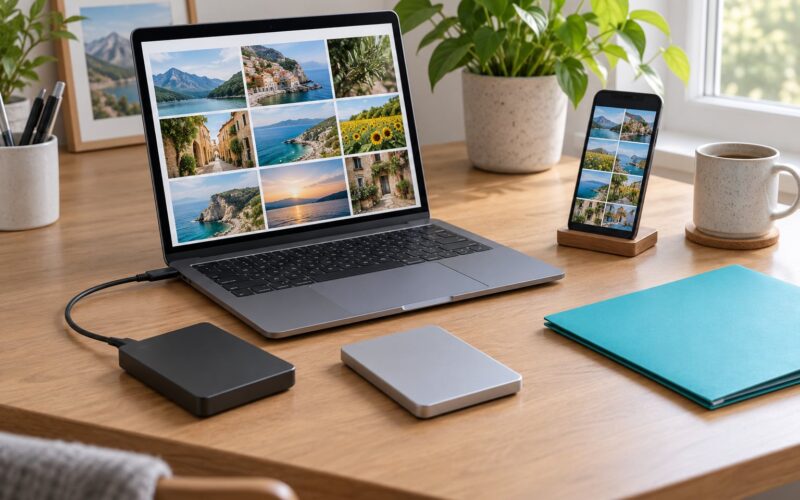
Backup storage with free space. Two copies is the sensible setup: the computer or laptop you already use, plus an external drive or a second card. Formatting erases everything, and it is not reversible.
One more thing: a charged battery or a live power connection. A camera that dies halfway through a format leaves you with a card that is half-erased and a menu that has forgotten what it was doing.
One warning before the steps. Formatting is not a repair tool and not a recovery tool. If photos are already on the card and you still want them, copying files off takes priority over any format, every time. Check your camera manual’s supported card sizes before you start, not after the card is full.
Step-by-Step
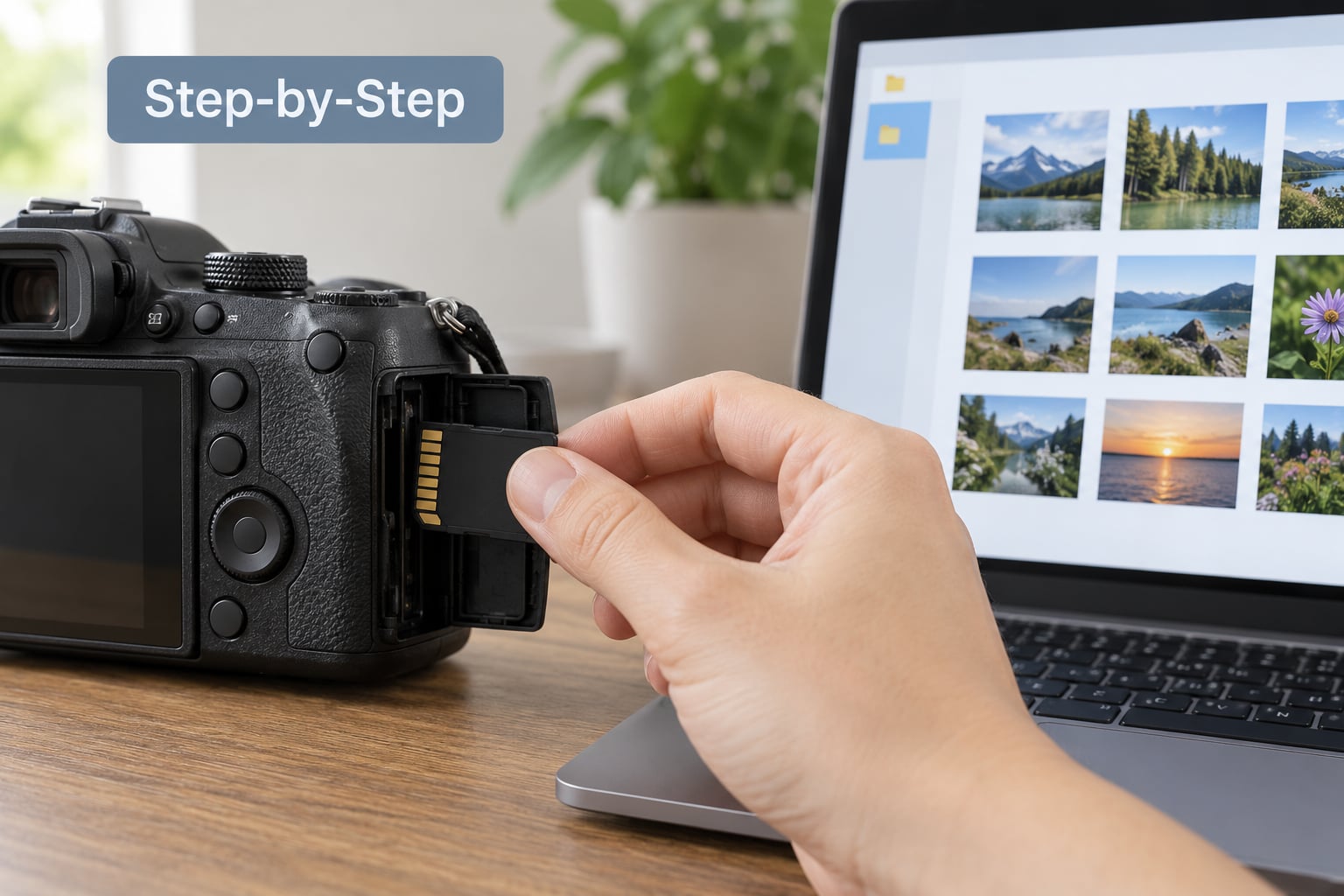
How to format a memory card correctly comes down to the same short list on every device:
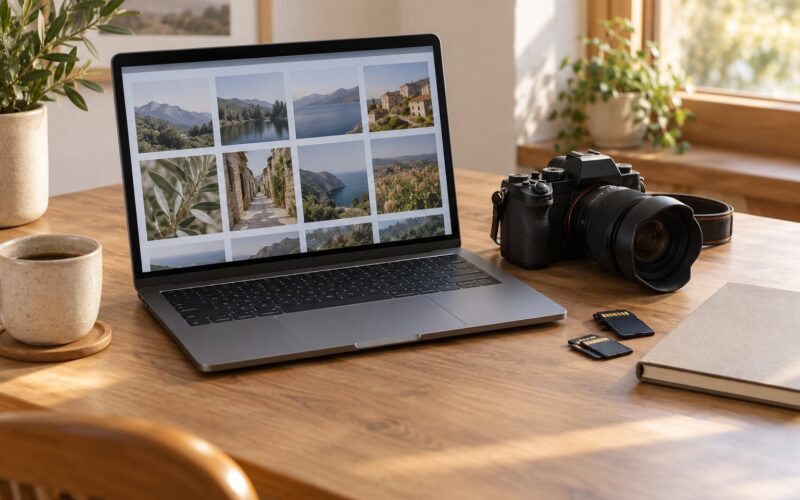
- Copy every photo and video off the card to two places.
- Confirm the card’s capacity and what your camera manual says it supports.
- Put the card in the camera, or the card in the reader, and open the format or initialize tool.
- Choose the file system the device recommends. Leave the allocation unit size at its default.
- Confirm the erase and wait until the device says it is finished. Do not remove the card.
- Take one test photo, play it back, then format again to clear the test frame.
How to Format a Memory Card Correctly in a Camera
This is the method most photographers should use, and the one to reach for whenever a camera will be reading the card next.
- Back up first. Copy the files to your computer, confirm they open, then continue.
- Power the camera on with the card already in it, or insert the card with the camera off depending on your manual.
- Open the setup menu. On Canon bodies it sits under the wrench icon and the card is usually called Format card. On Nikon look for Format memory card or Format. Sony and Fujifilm put it in the setup or memory menu under Format.
- Select the card slot if your camera has two. Formatting the wrong slot is a common and avoidable error.
- Press OK, then confirm. Choose the file system only if the camera actually offers a choice. Most cameras decide for you and that decision is normally the right one.
- Wait for the progress bar. Pulling the card during this step is how cards get bricked.
- Format a second time if you just took a test shot with it.
The camera writes its own folder structure during the format, including the database file it uses to track images. A card formatted on a computer may be missing that structure, which is one reason a camera can refuse a perfectly good card or ask you to format it again. Photographers on the DPReview forums reach the same conclusion: format new cards in the body before you write anything else to them.
How to Format a Memory Card Correctly on a Computer
Use the computer when the card is going to a phone, a dash cam, an action camera or a drone, or when your camera body cannot format it. On Windows, open File Explorer, right-click the card under This PC, choose Format, pick the file system, leave Quick Format unchecked the first time, and hit Start. Then use the safe eject icon in the tray before unplugging the reader.
On Mac, open Disk Utility, select the card in the sidebar, click Erase, choose the format from the list, and confirm. ERASE MS-DOS (FAT) is the FAT32 option. Unmount it from the eject icon in Finder when the process completes.
On Android, formatting depends heavily on the phone maker. Some models expose a Format option in the card’s storage settings, some hide it, and some offer no formatting at all. If your phone has no option, use a computer instead of hunting through settings.
Pick the file system like this:
| File system | Best for | Limits to know |
|---|---|---|
| exFAT | Most cameras, phones, action cams and dash cams | Windows needs drivers on very old versions; older cameras may not read it at all |
| FAT32 | Cards of 32GB or under, and older cameras that predate exFAT | Single files stop at 4GB, which cuts long video clips |
| NTFS | Windows PCs only | Most cameras and action cams cannot read it at all |
| MS-DOS (FAT) | The Windows name for FAT32 on cards up to 32GB | Nothing above 32GB, and the same 4GB file ceiling |
One practical limit to keep in mind. Windows will not create FAT32 on a 64GB or larger card, because the format itself tops out at 32GB, so people end up with exFAT instead or reach for a third-party formatter. Forum advice for a 64GB card in an older camera usually ends with FAT32 and a utility that can split it, which is exactly the sort of workaround that produces files an older body cannot index anyway.
Another limit: any card above 32GB in Windows becomes exFAT, and a camera built before exFAT existed may read it badly or not at all. Check the maximum supported card size in your camera manual before you format a large card, not after.
How to Know the Format Worked
A successful format looks boring, which is the point. The card shows up with its full rated capacity, no files on it, and no error message when you put it back in.
In a camera, the card appears in the menu with the correct free space, and the body stops showing the format prompt. Take one photo, play it back on the camera screen, and check that the folder structure appeared where you expected. If the camera asks you to format again straight away, the card or the body has a problem and formatting is not the fix.
On a computer, open the card and confirm it is empty and reports the expected capacity. A card that suddenly shows a much smaller capacity than it did before was formatted correctly and is telling you it has started failing.
Back in the camera, format once more to clear the test frames. That final format is what most people skip, and it is the reason cards turn up with a test photo or a folder of half-finished files on them.
Common Mistakes
Formatting the wrong drive. On Windows the format dialog names the volume and its size, so read both lines before you press Start. Naming the card something like PHOTO-2TB is the cheapest insurance in this whole guide.
Skipping the backup because the card looked empty. A card can hold files the camera and your computer both fail to display, and that is the exact case recovery tools exist for. Copy first, look second.
Choosing a file system the device cannot read. NTFS on a card that goes into a camera is the most common version of this. The fix is simple: format the card in the body rather than the PC, or pick exFAT from the list instead.
Removing the card while the format runs. Progress bars are not decoration. A camera that loses power mid-format may need the body itself serviced before it will read cards again.
Ignoring the write-protect switch. SD adapters have a small tab on the side, and microSD cards sold in adapters often do too. Locked means the card reads as read-only and no formatting tool will change it. Unlock the tab, and check the card in a different adapter before you suspect the card itself.
Using a card reader that has quietly failed. Readers with fake or failing controllers report capacity they cannot deliver, so the card comes back looking half its real size. Try the same card in a different reader before you conclude the card is damaged, and prefer a reader with a known-good controller.
Counterfeit or failing cards. Price is the usual warning sign here, though nobody is going to argue that with a card you already own. Test a card before a shoot that matters: format it, fill it, read it back. A card that has started failing will usually complain at the point of writing, not at the point of formatting.
A few safety habits worth keeping. Format in the body whenever a camera will read the card next. Never reformat a card with photos you have not copied twice. If you format by mistake and need the files, stop using the card immediately, because every new file written over the old ones puts the originals further out of reach. And do not treat a weekly format as a ritual: plenty of working photographers on the forums never format until the card is full or the body asks for it.
If your camera asks you to format the card every single time you insert it, stop formatting and start diagnosing. That loop usually means one of three things: a card too large for that body, a corrupted folder structure that formatting alone will not fix, or a failing card. Check the manual’s supported capacity first, then try the card in a different device. If the prompt follows the card everywhere, retire it.
Cards do not last forever. Flash memory has a finite number of write cycles, and the ones that give out first are the cheap high-capacity cards used for video, where every frame is a write. Formatting does not extend a card’s life. It does, however, give a worn card its best shot at writing cleanly, so a card that errors intermittently after a format is telling you something.
Frequently Asked Questions
Does formatting a memory card delete my photos?
Yes. Formatting erases every photo, video and file on the card and writes a new file system in their place. It is not a way to tidy up or free a little space. Copy anything you want to keep to two separate places first, open a few of the copied files to confirm they are intact, and only then start the format. If you already formatted by mistake, stop writing to the card immediately.
Can I format an SD card on a computer instead of in the camera?
Yes, and it works well for phones, action cams, dash cams and drones. The catch is that a computer creates only a file system, while your camera also writes its own folder structure and tracking database during an in-camera format. Some bodies then refuse the card or ask you to format it again. If a camera will be reading that card next, format it in the body. If not, the computer route is fine.
Should I format an SD card as exFAT or FAT32?
Use exFAT for cards above 32GB and for anything recording long video, since FAT32 stops at 4GB per file. Use FAT32 for cards of 32GB or under and for older cameras built before exFAT existed. The complication is Windows: it will not create FAT32 on a card larger than 32GB, so a 64GB card needs a third-party utility for that. Check your camera manual’s supported file system and capacity first.
Does formatting fix a corrupted memory card?
Usually it fixes the symptoms, not the cause. A corrupted file table, a half-finished write or leftover folders from another device will often clear with a format. A physically failing card will not, and forcing repeated formats just wears it out. Stop and check three things: the write-protect switch on the adapter, the maximum card size your camera supports, and whether the card still reports its full rated capacity. If the error follows the card into a second device, retire it.
Does the same formatting method work for cameras, phones and action cams?
The principle is identical everywhere: back up, format, confirm, wait, eject safely. The details differ. Cameras have a Format or Format card option in the setup menu and no file system choice. Windows uses File Explorer, Mac uses Disk Utility, and many Android phones simply do not offer a format option at all. Action cams and dash cams are usually formatted by the camera itself or by the maker’s own app, and that is the safer route.
Conclusion
Back up the card first, every time. Then format it in the camera if a camera will read it next, or on a computer with a reader you trust if it is headed for a phone or an action cam. Choose exFAT for anything over 32GB or recording long video, leave the allocation unit size alone, and wait for the progress to finish before touching the card.
Finish with a test shot and one more format. Two extra minutes, and the next shoot starts without the format prompt, the card error, or the frantic check of whether the files you need made it off the card last night.