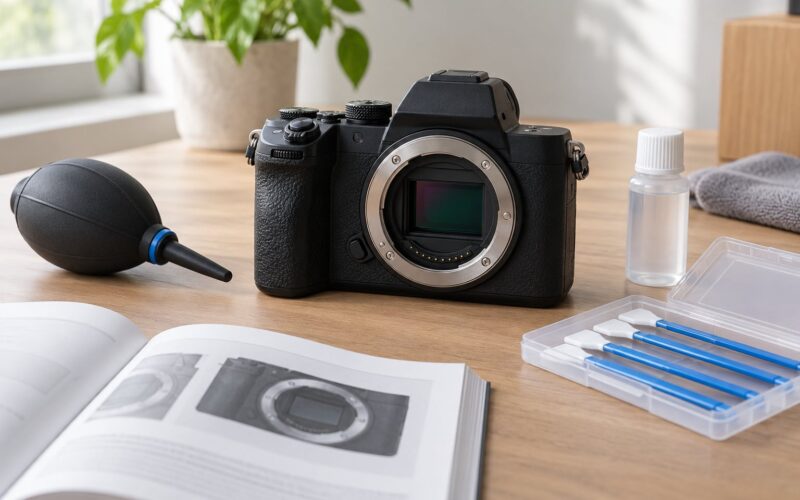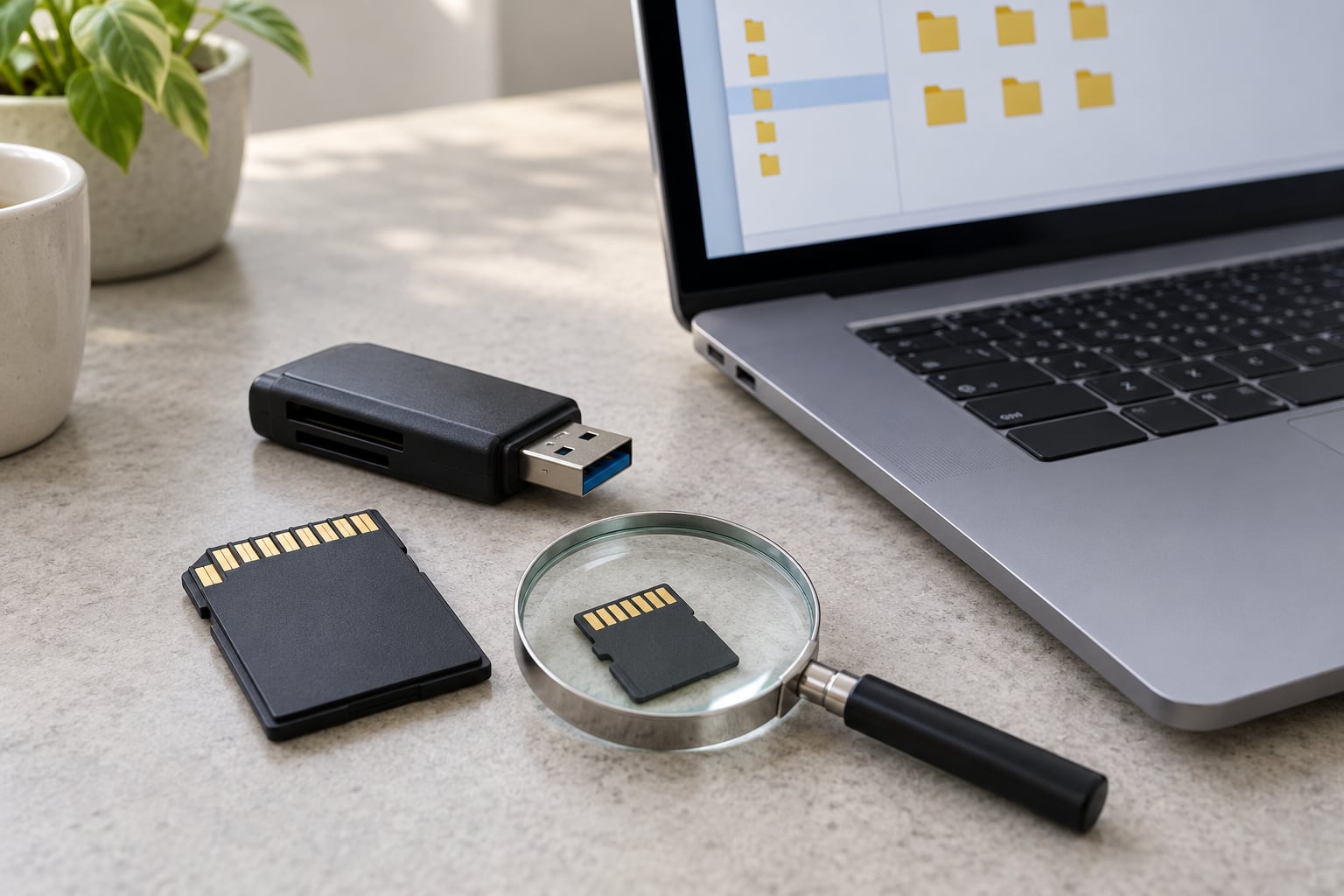
A memory card gets corrupted when a write is interrupted before it finishes, so the file being saved and the directory entry pointing to it are left in a broken state. Pulling the card mid-write, a battery dying during a long recording, a crash, or flash memory cells wearing out all produce the same symptom. The good news is that most cards with an interrupted write are fully recoverable.
The bad news is that every photo you take after the failure can overwrite what is left. That single fact drives everything below, and it is the step almost everyone skips.
This guide is written for photographers and everyday device users, and it is updated for 2026. It covers the same ground regardless of whether the card lives in a Sony Alpha body, a Raspberry Pi, an Android phone, or a dashcam. The short answer to why did my memory card get corrupted sits in the next heading, but the order you work in matters more than which recovery tool you pick.
Quick triage checklist — the first 10 minutes
- Stop shooting, stop copying, stop formatting. Treat the card as evidence.
- Write down the exact error message your camera or computer gave you.
- Try a different reader or a different port before blaming the card.
- Check Windows Disk Management or Disk Utility to see whether the card reports its full capacity.
- Image the card or scan it read-only before running anything that writes.
Work through those five in order and you will know within about ten minutes whether you are dealing with a fixable file system problem or a card whose flash memory is dying. Everything below explains how to tell the two apart and what to do about each.
Table of Contents
- What You Need
- Why Did My Memory Card Get Corrupted?
- What does “corrupted” actually mean here?
- Common Causes and Warning Signs
- How to tell logical corruption from a dying card
- Step-by-Step: Safely Check and Recover the Card
- 1. Stop Using the Card Immediately
- 2. Check the Reader, Adapter, and Device
- 3. Inspect the Card for Physical or Format Problems
- 4. Try a Read-Only Recovery Attempt
- 5. Back Up Files and Replace Unreliable Cards
- Why photos recover but videos often do not
- Common Mistakes That Make Corruption Worse
- How to Prevent Future Memory Card Corruption
- How long memory cards actually last
- Frequently Asked Questions
- How do I uncorrupt my SD card?
- What is the lifespan of an SD card?
- Can I still use a corrupted SD card?
- Can photos be recovered from a corrupted SD card?
- What happens if a SD card is corrupted?
- Why do my recovered videos have filenames but will not play?
- Conclusion
What You Need
Gather these before you touch the card, because scrambling to find a cable halfway through a recovery attempt is how people accidentally cause writes.
- The affected card. Handle it by the edges. Do not format it, initialize it, or let a device write to it while you work.
- A known-good card reader. Ideally a reader you already trust with other cards, not the cheap bundled microSD-to-SD adapter that shipped in the box.
- A computer with free space. Recovery runs need somewhere to write to that is not the card itself. For a 256 GB card, plan on a few hundred GB of free space if you plan to make a full disk image.
- A reputable recovery tool. PhotoRec and TestDisk are free and open source. Paid options add guided interfaces and preview panes; both categories are fine if they scan without writing to the source.
- A second card or drive. You need somewhere to put the files you rescue, and you need it before you start, not after.
Before anything else, note the precaution that matters most: do not format, do not initialize, and do not run repair tools that modify the card. Those actions write new data and can bury the files you are trying to save under the ones being written now.
Why Did My Memory Card Get Corrupted?
Here is the mechanism. A memory card stores data in NAND flash cells controlled by a small chip on the card itself. Because flash cells wear out after a limited number of write and erase cycles, that controller spreads writes across many cells using a process called wear levelling. If power disappears while the controller is mid-write, the file being saved ends up half-written, and the directory entry that records where the file starts and how long it is can be damaged too. The card still holds your bytes; it has simply lost the map that points to them.
That is the single most common mechanism, and it explains why a card can show its full capacity, appear in File Explorer with an empty folder list, and still contain every photo you shot.
Here are the causes in the order they actually happen, roughly by frequency.
- The card was removed or ejected during a write. Pulling an SD card while a camera was still writing to it is the single most common cause, and it usually happens when a buffer warning appears and you assume the write is done. It is not done.
- Power loss mid-write. A dying camera battery, a drone that ran flat, a Pi that lost power during a reboot, or a dashcam that was unplugged with the engine off all interrupt the same write.
- The device crashed or froze. A camera lock-up, a full buffer, or an overheating camera can abort a write without a clean shutdown.
- Flash cells wore out. Every card has a finite write budget. Once too many blocks fail and cannot be replaced by the spare blocks the controller keeps, the card starts losing data with no external trigger at all.
- A failing card reader or adapter. The bundled microSD-to-SD adapter and cheap USB readers fail intermittently, and the card gets blamed. Several people on photography forums have swapped the reader and found a card that was never the problem.
- The card was formatted in the wrong file system. A card formatted as exFAT and used in a camera that only supports FAT32 will not mount properly, and a card formatted as FAT32 will not hold files larger than 4 GB.
- Heat and physical abuse. Cards left in a hot car, bent when forced into a tight slot, or cracked by a drop can lose data with no error message at all.
- Water and humidity. Corrosion on the contacts can make a card read intermittently, which produces corruption that comes and goes.
- Counterfeit capacity. Very cheap cards sometimes report far more capacity than the flash inside them actually has. Writes past the real capacity are never stored, so files come back as zero-byte shells. This one is worth checking before anything else if the card was a bargain.
What does “corrupted” actually mean here?
Corrupted is a loose word covering three different problems. Logical corruption is damaged file system metadata — the partition table, boot sector, or FAT32/exFAT directory entries — while the actual file data is intact and usually recoverable. Block-level damage means the flash memory itself is returning wrong data or nothing at all, which is unrecoverable for the affected files. Hardware failure means the controller or the card contacts are gone, and the card will not mount on any reader. Knowing which of the three you have decides whether software helps.
| Cause | Typical symptom | Recoverable? |
|---|---|---|
| Card removed mid-write | Directory empty or DCIM missing, card mounts at full size | Usually, fully |
| Battery or power loss during recording | Last video is 0 bytes or will not play | Photos yes, that video usually no |
| Device crash or freeze | Error mid-shoot, later files may be intact | Usually, fully |
| Flash cells worn out | Random disconnects, card runs hot, reported capacity shrinks | Partially, and worsening with each pass |
| Failing reader or adapter | Intermittent errors, works in another reader | Nothing was lost; copy again |
| Wrong file system for the device | Camera says card error, computer says needs formatting | Yes, reformat and reshoot |
| Counterfeit capacity | Files past a certain point come back zero bytes | No, the data was never written |
| Physical damage or water | Not detected, or detected only when warm | No |
Common Causes and Warning Signs
Once you know the causes, match them against what your device actually did. The messages are more specific than people expect, and each one points at a different problem.
- “Card needs formatting” or “card error.” The device can read the card’s hardware but cannot mount its file system. This is the classic signature of an interrupted write that damaged the directory structures. It is usually recoverable, because the file data is still sitting there waiting for a correct map.
- Missing folders. DCIM, PRIVATE, AVCHD, and MISC are the folder names cameras and camcorders use. If they vanished or appear empty, the directory entries are damaged. Do not manually create, rename, or delete these folders to try to fix things; you will make the mapping worse.
- Unreadable photos. Some JPEGs open, others show as 0 bytes or corrupted-image errors. That pattern points to block-level damage rather than a file system problem.
- The card disappears and comes back. Intermittent mounting is a hardware signal, not a file system signal. Combined with a card that feels hot to the touch, it means the flash or the controller is failing.
- Unusually slow transfers. Reads that crawl or stall mean the controller is retrying failed blocks. Each retry is another chance for the card to hang or drop out.
- Shrinking reported capacity. If a 128 GB card reports 119 GB, then 116 GB, then 109 GB, the controller is losing blocks it can no longer remap. Stop using it immediately.
- Nothing at all in Disk Management or Disk Utility. When the card reports 0 bytes or no capacity, the failure is in the hardware. No recovery software can read a card the operating system cannot see.
How to tell logical corruption from a dying card
Logical corruption is loud and annoying: an error message, an empty folder, a prompt asking you to format. A dying card is quiet and intermittent, and it gets worse every time you touch it. If your card mounts at its full capacity, appears in Disk Management at the right size, and simply has no files, you are looking at logical corruption and you have real hope. If the card drops off the bus mid-transfer, runs hot, or reports a capacity smaller than its label, the flash is failing, and each additional read risks losing more.
One warning sign deserves special mention: running the card through multiple recovery passes. People on recovery forums consistently report that roughly one careful pass, maybe two, is all a weak card tolerates before the results degrade noticeably.
Step-by-Step: Safely Check and Recover the Card
Run these steps in order. Each one is more invasive than the last, so skipping ahead can cost you the data.
1. Stop Using the Card Immediately
Every new write can overwrite recoverable data. New photos are written into blocks the controller considers free, and the file system may happily reuse space that still holds an orphaned file it can no longer name. That is exactly how a card with a damaged directory ends up with genuinely nothing on it.
Stop taking photos, stop copying files, stop formatting, stop initializing, and stop running repair utilities that modify the card. Remove it from the camera and keep it somewhere safe and dry.
Success indicator: you can say exactly what happened and when, and nothing has changed on the card since.
2. Check the Reader, Adapter, and Device
Rule out the boring causes before blaming the card. Try a second reader you already trust, plugged directly into the computer rather than through a hub, and skip the adapter the card came with if you can.
On Windows, open Disk Management (right-click the Start button, choose Disk Management) and look for the card. On macOS, open Disk Utility. If it shows a partition with the card’s full capacity, the hardware is communicating and recovery is realistic. If it shows 0 bytes or an unallocated space of the wrong size, you are dealing with hardware failure.
Also check the file system. A camera that supports only FAT32 will reject an exFAT card, and a FAT32 card cannot store any single file over 4 GB, which matters constantly for video.
Success indicator: the card appears at its correct capacity in Disk Management or Disk Utility, or it starts working in a different reader.
3. Inspect the Card for Physical or Format Problems
Look at the card under a light. Bent or recessed contacts, a cracked shell, a peeling or damaged label, or scorch marks all mean the card has physical damage. Full-size SD cards also have a write-protect switch on the side; on adapters it is often a small tab or slider rather than a real switch. That alone causes the repeated “Windows cannot format this card” loop people run into.
A card with physical damage should not be forced into another device. If it is not detected anywhere, does not show correct capacity, or the contacts are visibly damaged, stop here.
Success indicator: the card mounts cleanly and reports full capacity, which rules out physical damage.
4. Try a Read-Only Recovery Attempt
Connect the card through a good reader and run a scan that does not write to the source. The key step that most guides skip is making a byte-to-byte image first: create a full disk image of the card onto another drive, then run all recovery software against that image file instead of against the live card. Imaging reads the card once in a straight pass; scanning it repeatedly reads weak cells over and over, which is how a marginal card gets worse.
Free tools that scan without writing include PhotoRec, which carves files out by their signature rather than using the file system, and TestDisk, which rebuilds a damaged partition table. Note the risk on TestDisk: it writes changes to the metadata it repairs, so run it against an image, never against your only copy.
Paid tools such as Disk Drill or the vendor rescue utilities add a guided interface and a preview pane, which helps you confirm a recovered JPEG is a real photo rather than an empty shell before you save it. Read the documentation on what your software writes and when. If a utility promises guaranteed recovery but does not clearly say whether it modifies the source card, assume it does and image first.
Save everything you can to a completely different drive. Once files are off the card and verified, then, and only then, think about repairing or formatting.
Success indicator: recovered files appear on your computer with plausible sizes and open correctly.
5. Back Up Files and Replace Unreliable Cards
Verify recovered photos before you delete anything. Open a sample of JPEGs and a RAW file, and check that recovered video plays rather than showing a duration but no picture. Compare file sizes against what your camera normally produces; files that came back at a fraction of normal size are almost always truncated or empty.
Keep a second copy on a separate drive before doing anything else with the card. The 3-2-1 approach works well here: three copies of the data, on two different types of media, with one of them somewhere else.
If a card has produced read errors, dropped off mid-transfer, or run hot even once, retire it. Recovery software cannot bring back data that was never written, and it cannot repair cells that have failed permanently. A card that corrupted once will very likely do it again, usually sooner.
Success indicator: your photos are safely backed up, and the card is out of the rotation.
Why photos recover but videos often do not
A JPEG is mostly pixels, so if most of its data survives you still get a readable image, sometimes with a few corrupted lines. An MP4 is a container: it carries an index that says where each frame lives, and that index sits near the start of the file. If recording was interrupted, the header and index are frequently the exact part that was being written when everything stopped. The result is a file with a plausible name, a real size on disk, and nothing playable inside.
Some of those can be rebuilt with repair tools, but many cannot. Expect to lose the last video on the card and keep everything before it.
Common Mistakes That Make Corruption Worse
Almost every bad outcome traces back to one of these, and all of them are common.
- Formatting the card first. Format is a write operation. It lays a new file system over the top of the old one, which is precisely where the directory entries pointing at your photos live. Data recovery after a format is far less likely to succeed. The safer alternative is to recover files first, format last, if at all.
- Reconnecting a failing card repeatedly. Plugging a card that disconnects into the reader over and over stresses the exact blocks that are failing. The safer alternative is one careful imaging pass, then a lab.
- Running CHKDSK or a repair tool on camera media. These are designed to make a volume consistent, not to preserve files, and they write to the card while doing it. Use them only on a drive you have already backed up.
- Treating the card as the only copy. A single card with a single shoot on it has no margin for error. The alternative is boring and effective: copy to a laptop or drive the same evening.
- Continuing to shoot onto a card with read errors. If the camera reported errors mid-shoot, stop and change cards. You may be overwriting recoverable files on the one card that still has something on it.
- Buying several paid tools before imaging. Every tool you point at the live card is another set of reads on weak cells. Image once, then try as many tools as you like against the image.
How to Prevent Future Memory Card Corruption
Prevention is mostly habit, and the habits are not complicated.
- Format in the device that will use the card. Cameras, drones, and action cams each write their own folder structure and expect a particular file system. A quick format in the camera takes seconds and prevents the “card error” prompt entirely.
- Eject only when the device says it is safe. Wait for the on-screen confirmation, and on a computer wait for the activity light to stop. Pulling a card the moment the copy bar fills is how half of these failures happen.
- Skip bundled adapters. The plastic microSD-to-SD adapter in the box is the flimsiest part of the setup. Buy a decent one, or use a reader with the microSD slot built in.
- Keep cards cool and dry. Heat accelerates wear and makes controllers quit under load. Never leave a card in a parked car.
- Rotate cards on a schedule. Mark each card with a purchase date, retire them before they reach their expected life, and never shoot paid work onto a card you have already had an error with.
- Back up the same day. Three copies, two media types, one off-site. This is the only thing that actually protects the shoot.
How long memory cards actually last
Nobody publishes a single lifespan, because flash endurance depends on the card’s class, how full the write cycle is, and how often you rewrite the same blocks. What you can do is budget by device class, since the difference between a camera and a dashcam is enormous.
| Device class | Write pattern | Typical trouble-free life |
|---|---|---|
| Camera stills | Bursts, then idle | Several years of normal shooting |
| Video camera | Sustained writes per session | Often under two years |
| Drone | Continuous recording, vibration, heat | Often one to two years |
| Dashcam | Constant rewrite, 24/7 loop | Often under a year |
| Raspberry Pi boot card | Swap and log writes 24/7 | Often one to two years |
| Android phone storage | App and cache churn | Two to four years |
Treat these as planning ranges rather than guarantees, and treat any card that needs replacing twice in a year as due regardless of what the table says.
Frequently Asked Questions
How do I uncorrupt my SD card?
Stop using the card first, because every new write can overwrite recoverable files. Check it in a different reader, confirm it reports full capacity in Disk Management or Disk Utility, then scan it with software that does not write to the card. Recover your photos to another drive before you format anything, and replace the card afterwards.
What is the lifespan of an SD card?
It depends far more on how much you write than on the brand. A camera used for stills often runs several years without trouble, while a dashcam rewriting in a loop, a drone recording continuously, or a Raspberry Pi with swap enabled can wear a card out in one to two years. Heat and counterfeit cards shorten that further.
Can I still use a corrupted SD card?
Only for disposable data. A card that has thrown read errors, dropped out mid-transfer, or run hot has failing flash cells, and continuing to use it risks losing whatever is still on it. Recover what you can, copy it somewhere safe, and retire the card. Formatting it will make it usable again but will not make it trustworthy.
Can photos be recovered from a corrupted SD card?
In most cases yes. If the card mounts at its full capacity and simply has missing or empty folders, the file data is usually intact and only the file system is damaged, which photo recovery tools handle well. If the card reports 0 bytes, disconnects repeatedly, or has physical damage, the data is gone and no software will bring it back.
What happens if a SD card is corrupted?
The data written to it becomes incomplete or unreadable, usually because a write was interrupted. The card may show an error in your camera, prompt you to format it, mount with empty folders, or stop being detected at all. Nothing on the card is necessarily gone; the card has often lost the index that points to your files.
Why do my recovered videos have filenames but will not play?
Because the file’s header and index were the parts being written when the interruption happened. An MP4 stores a table of contents near the start, and if that table is gone the player has nothing to work with even though the file has a real size on disk. Photos survive this more often because their readable data is distributed through the file.
Conclusion
If you take one thing from this, make it the first action: stop writing to the card. Everything after that is about reading, and reading is what preserves your photos.
Test the connection in a different reader and check that the card reports its full capacity. If it does, image it or scan it read-only, and pull every file you can onto another drive before you format, repair, or try anything else. If the card reports 0 bytes, disconnects on its own, or has physical damage, stop after one careful attempt and hand it to a professional lab.
Once your files are safe, retire the card. A card that corrupted once is telling you something true about its flash memory, and the next shoot is not the time to find out whether it was telling the truth.